
One of my client want to test wordpress 2.7, since it’s not ready for production phase he told me to set a blog and step by step guide for install wordpress NOT from ssh. He want to use file manager that exist in his hostmonster account. Still plenty of space and spare domain to try out 🙂
Requirements:
1. Hosting account
2. Domain
Steps :
Download WordPress
1. Download WordPress 2.7 Beta 2 from here and save the file to computer.
Prepare The File
2. Login to cpanel
3. Open File Manager

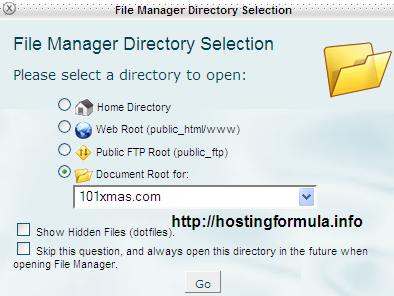
4. Choose domain you want to install wordpress then click GO
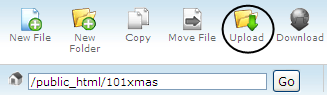
5. Click on Upload button.
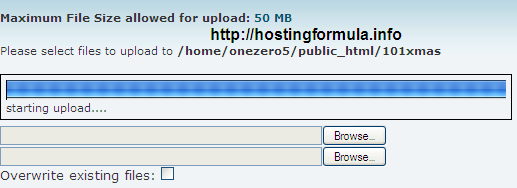
6. Pick the files and system automatically upload it.
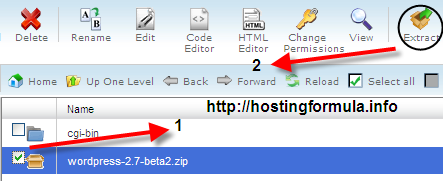
7. Extract file
Tick on checkbox and followed by click Extract button.
8. Move the file
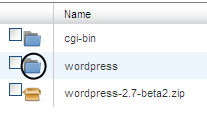
By default the result from step 7 is a folder, we need to move its content to root folder of the blog.
Double Click on folder that I mark by circle, it will load folder content.
Click ‘Select All‘ and follow by click on ‘Move File‘.
Make sure to change destination folder into :
/public_html/101xmas
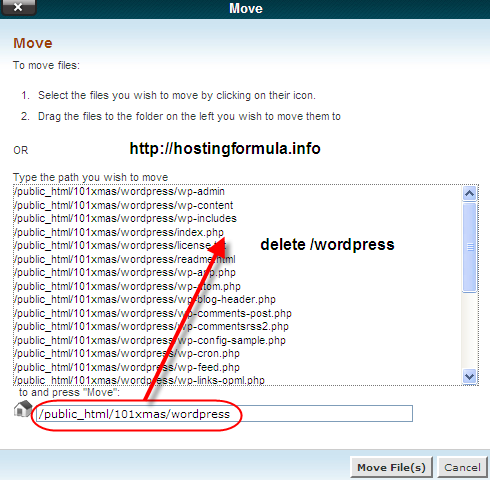
And click ‘Move File(s)‘ button to execute.
Click on ‘Up One Level‘ button to see the result. All content from wordpress move to root.
At next part I’ll continue to next step.
I have to pick my wife now 🙂
Till all things setup properly I refer you to Lorelle post : News around WordPress 2.7
Pingback: Install Wordpress 2.7 Beta 2 | Hosting Formula
Thanks for the information. There seems to be a never ending supply of great information on the net. I love learning new stuff, and will be back to read your posts regularly !! Thanks again 🙂
Thanks,
Sandy