1. Guarantee Web site malware removal (joomla, drupal, wordpress etc) - don't let your business get down due to virus, malware and blacklist problem.
  2. Recommended Web Hosting to help you doing business online with high performance. : Support ioncube, zend and all other hosting by default.
  3. Get free wordpress website transfer : up to 4 domains Find out more .... Click here to see other user testimonial

It’s my pleasure to see my stat page in wordpress show some number and I can know where they come from. That mean what I write call others attention and perhaps also overcome their problem.

sucuri long How to Submit Blog / Website to Google Webmaster Tools

Migration to new host and new domain hostingformula.net also give me other job. Tell google about this new URL beside create permanent redirection 301. Submit to Google Webmaster Tools is my concern right now and I’d love to make screnshoot as usual icon smile How to Submit Blog / Website to Google Webmaster Tools

Requirement

  1. Google account
  2. XML sitemap

Step By Step

1. Go to Google Webmaster Tools

2. Click ‘Add a Site…’ button.
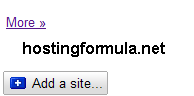
submit blog to google webmaster 1 How to Submit Blog / Website to Google Webmaster Tools

3. Enter the URL of a site you’d like to manage and click Continue button.
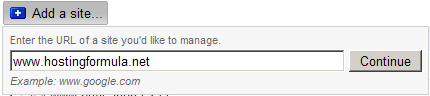
submit blog to google webmaster 2 How to Submit Blog / Website to Google Webmaster Tools

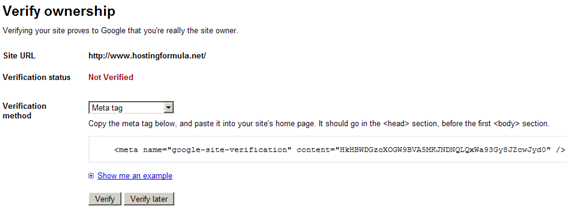
4. Verity ownership

submit blog to google webmaster 3 How to Submit Blog / Website to Google Webmaster Tools

I choose ‘Meta Tag’ Verification method.

In wordpress I click ‘Editor‘ under Appearance menu.
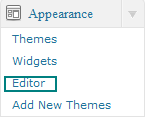
submit blog to google webmaster 4 How to Submit Blog / Website to Google Webmaster Tools

Click ‘header.php’ file from theme files list.
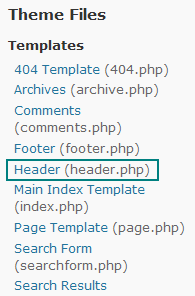
submit blog to google webmaster 5 How to Submit Blog / Website to Google Webmaster Tools

fhdfghdf

submit blog to google webmaster 6 How to Submit Blog / Website to Google Webmaster Tools

Copy and paste code under sentences :

Copy the meta tag below, and paste it into your site’s home page. It should go in the <head> section, before the first <body> section.

in Google webmaster and hit update file.

5. After insert meta tag you can back to google webmaster tools section and click button Verify.

Submit Sitemap

After verify stage complete you’ll see dashboard for URL submitted in previous step.
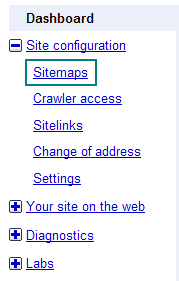
submit blog to google webmaster 7 How to Submit Blog / Website to Google Webmaster Tools

Click Sitemaps.

Enter the name of sitemap.

I enter sitemap.xml in input box as I’ve create sitemap earlier.

submit blog to google webmaster 8 How to Submit Blog / Website to Google Webmaster Tools

Click Submit Sitemap button.

Confirmation message will appear as follows :

http://www.hostingformula.net/sitemap.xml has been added as a Sitemap.

All step for submit my new URL already done and I just need to relax and let google work.

See you in other post and stay health!

hg How to Submit Blog / Website to Google Webmaster Tools

Related posts:

  1. Step by step guide adding rel=author for your wordpress blog
  2. How to Integrate Google Apps Email with cPanel domains
  3. How to add TXT Record on BlueHost for Activate Google Apps
  4. How to monitor my website or blog uptime status
  5. Spread blog service with blogspot

 Leave a Reply

(required)

(required)

You may use these HTML tags and attributes: <a href="" title=""> <abbr title=""> <acronym title=""> <b> <blockquote cite=""> <cite> <code> <del datetime=""> <em> <i> <q cite=""> <strike> <strong>

   
© 2011 Hosting Formula Suffusion theme by Sayontan Sinha