Step by step setting permanent redirect 301 with cpanel


Migration to new web hosting almost complete. One step need to take at the moment is :

Announce new url while maintaining traffic

The solution is simple, just enable permanent redirection 301.

Step by step guide on activate permanent redirection 301 with cpanel hosting.

Cpanel login

Make sure to open port 2082

Cpanel Domains Menu

Click Redirects icon as shown in the picture.
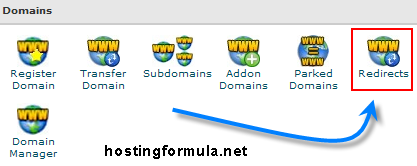
permanent redirect 301 3 Step by step setting permanent redirect 301 with cpanel

Redirection menu

  1. Choose Permanent (301) from type.
  2. Choose old domain that will redirect
  3. Enter new address in redirects to input box.

Check Wild Card Redirect.

Click Add
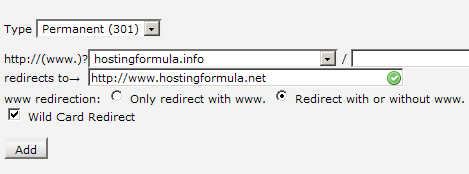
permanent redirect 301 Step by step setting permanent redirect 301 with cpanel

Confirmation message will show up.

permanent redirect 301 2 Step by step setting permanent redirect 301 with cpanel

Testing Redirect

Type one of full address in browser and I got this message :

Oops! Firefox could not find www.hostingformula.netinstall-wordpress-at-home

Ups, it seem I make a mistake in Redirect URL.

Going back to previous work and click Remove button.

permanent redirect 301 4 Step by step setting permanent redirect 301 with cpanel

Resetting new redirect and make sure to add slash (/) at the end of new address URL.
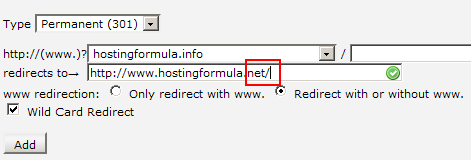
permanent redirect 301 5 Step by step setting permanent redirect 301 with cpanel

Click Add.

Testing 301 redirect effect

Try to visit old url :

Deprecated: Function ereg() is deprecated when install Drupal

This time I can see the post :-)

Thank you redirect 301. This method also work with hostgator cpanel.

See you next time and stay health!

Related Reading:

Drupal For DummiesDrupal For Dummies

Learn to set up, manage, and administer a Drupal Web site

Drupal offers unparalleled flexibility for content-managed Web sites, but most ... Read More >

Using DrupalUsing Drupal

With the recipes in this book, you can take full advantage of the vast collection of community-contributed modules that make the Drupal web framewo... Read More >

Pro Drupal Development, Second EditionPro Drupal Development, Second Edition

Widely praised for its in–depth coverage of Drupal internals, bestselling Pro Drupal Development has been completely updated for Drupal 6 in thi... Read More >

Pro Drupal 7 Development, Third EditionPro Drupal 7 Development, Third Edition

This book is geared toward professionals that need to deploy and customize Drupal. This book delves deep into the internals of the Drupal 7 system ... Read More >

Beginning Drupal 7Beginning Drupal 7

This book focuses on the nontechnical user who is responsible for building, maintaining, and managing Drupal web sites. The book covers why you sho... Read More >

Thanks for reading, if you think this post help you please consider to buy me a beer

Search Terms :

  • hostgator Wildcard Redirect
  • Permanent Redirect for joomla in windows
  • permanent 301 redirect host gator how to
  • permanent 301 redirect cpanel domain
  • managing 301 redirects
  • joomla cpanel redirect 301 not working
  • how to setup Wildcard redir on cPanel
  • how to setup 301 redirect cpanel
  • how to set up a 301 page redirect host gator
  • how to set a 301 redirect hostgator
  • how to redirect process i cpanel step by step explane
  • how to install 301 redirect wordpress bluehost
  • How to change the settings for the POST METHOD cpanel
  • how to add redirection in hostgator hosting
  • How to add a vpn address in cPanel
  • how to add a 301 redirect for dummies
  • how enable permanent redirect
  • rederect 301 cpanel bluehost
  • Redirect 301 /phpmyadmin
  • redirect 301 cpanel
    • Share/Bookmark
    Drupal, Step By Step, bluehost

    If you enjoyed this post, please consider to leave a comment or subscribe to the feed and get future articles delivered to your feed reader.

    Comments

    2 Responses to “Step by step setting permanent redirect 301 with cpanel”

    Leave Comment

    (required)

    (required)
