
Previous post talk about install wamp as foundation tool for executing all php file and mysql database plus phpmyadmin as database management tool.
I want to use a domain (a name that people will type in the browser to reach you future online shop) “winhows.net” ( this domain is fake and I just think to use it in for future address).
Now I’ll continue with simulating domain case.
Let start,
Start Wampserver
Run wampserver from :
Start -> All Programs -> WampServer -> Start WampServer
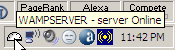
You’ll see an icon like picture below, move your cursor over the icon and you’ll see message “WAMPSERVER – server Online”
Testing :
Open browser and type “localhost”, you should see a page like this one.
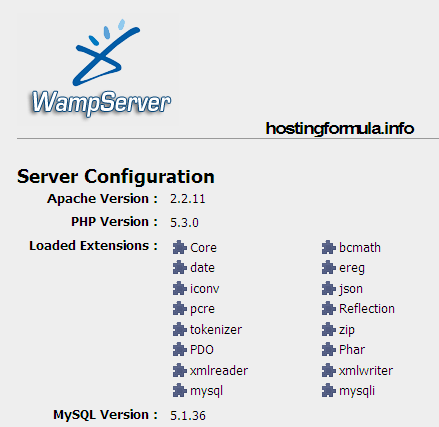
till this stage make sure you see all things as shown in the picture. If OK you may continue to next step.
Setting Domain
Actually what we do is adding some hostname to computer. To make it easy we’ll use a software called HostsXpert.
Download the software from here and extract.
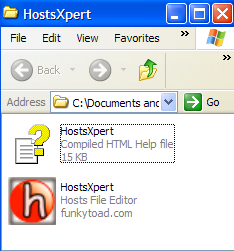
Open the program by double click on the icon.
Add Domain
Click Editing link.
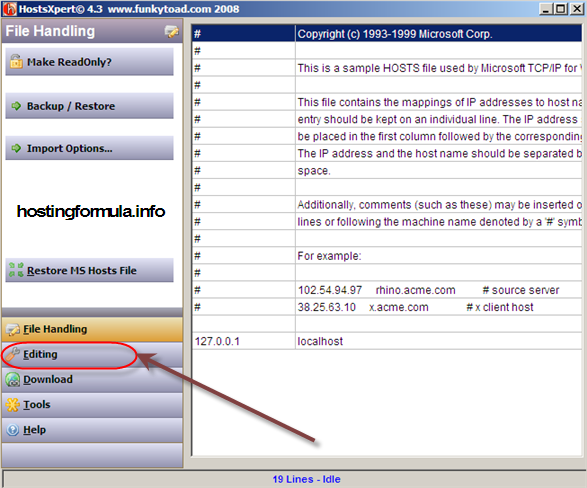
type winhows.net and press “Add Line“.
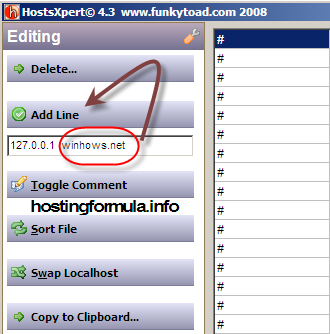
On the right panel you’ll see updated list of hosts.
127.0.0.1 localhost
127.0.0.1 winhows.net
Test Domain / Host
Open your browser and type “winhows.net”
You’ll see same page as you type “localhost”.
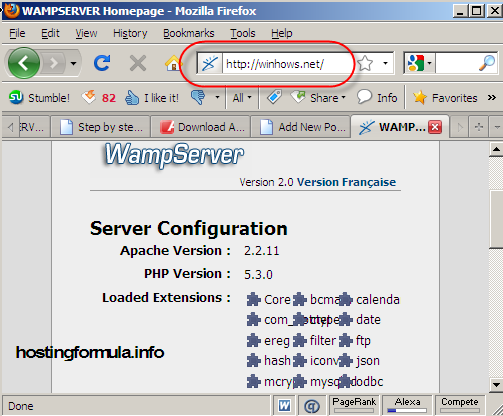
Congratulation, you have set domain for your online shop.
I’ll continue about email section in other post.
See You.
Pingback: Install Wordpress at Home | Hosting Formula
Pingback: Step by Step Build Wordpress Shop in 30 day or less | Hosting Formula
Pingback: Step by step install Expression Engine with WampServer | Hosting Formula
Pingback: Step by Step install Joomla with WampServer | Hosting Formula