
At previous post I have written about :
All post use localhost aka home development.
In this post I’ll show how to configure email server together with our wamp server.
Problem
Little problem came when wamp and axigen installed by default installation.
Ports
Ports utilized in Wamp :
- Apache (80)
- MySQL (3306)
Ports utlized in Axigen :
- CLI (7000)
- Webadmin (9000)
- SMTP (25)
- POP3 (110)
- IMAP (143)
- Webmail (80)
As you see Webmail and Apache use same port (80) . One of the service need to change its port to make everything working well.
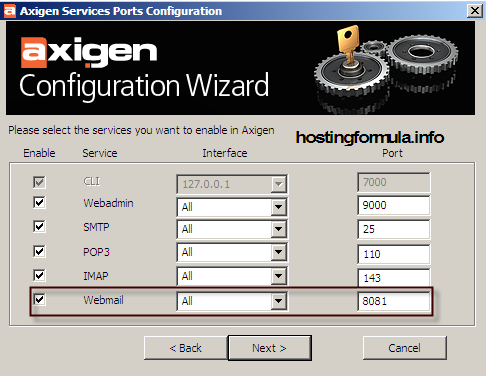
I choose to change webmail port to 8081.
Change Webmail port in Axigen
1. Start Axigen
Click Start -> All Programs -> Axigen Config Wizard
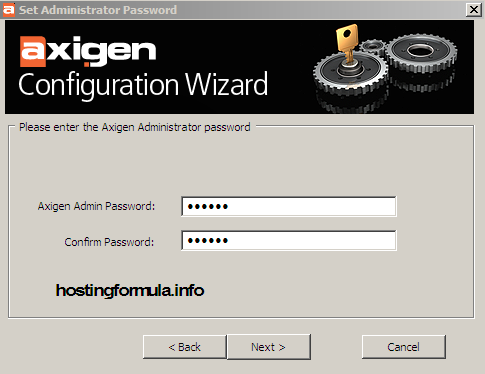
Click Next
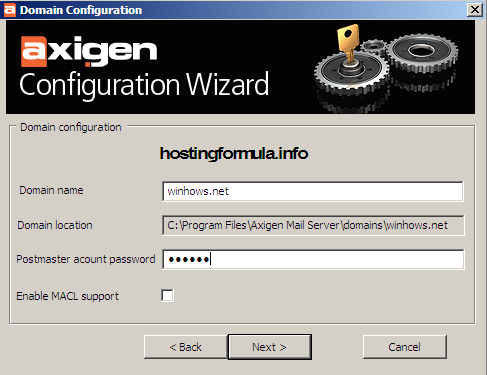
Domain Configuration
I enter winhows.net ( fake domain that I use on previous post).
Enter postmaster password and click Next ( I enter 123456 as password)
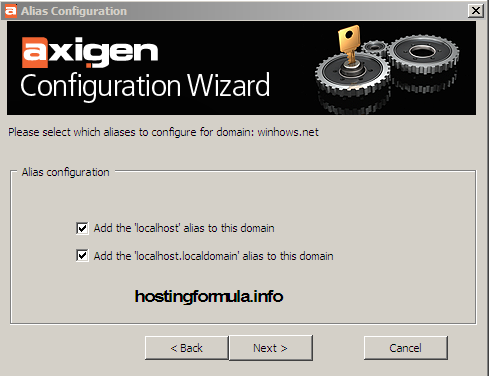
Alias Configuration
Check both the option provided :
- Add the localhost alias to this domain
- Add the localhost.localdomain alias to this domain
Click Next.
Check every service to enable and make sure to change port of webmail to 8081.
Click Next.
Check Interface that you want for relay email purpose.
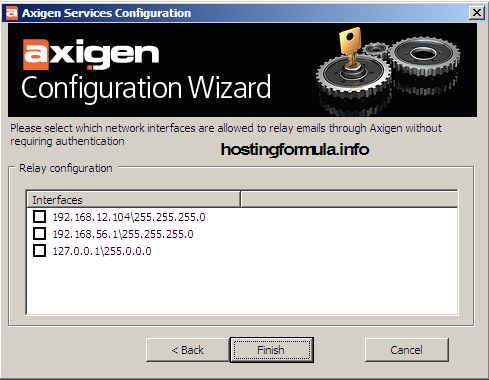
Click Finish and you’re set 🙂
Checking Service
By click Finish Axigen email server get reconfigured automatically. To check if all port is running OK now I use dos prompt.
Click Start -> Run
Type cmd and hit Enter.
command prompt will displayed and type this command :
netstat -an and press Enter.
Result in my Computer is :
C:\Documents and Settings\Administrator>netstat -an
Active Connections
Proto Local Address Foreign Address State
TCP 0.0.0.0:21 0.0.0.0:0 LISTENING
TCP 0.0.0.0:25 0.0.0.0:0 LISTENING
TCP 0.0.0.0:110 0.0.0.0:0 LISTENING
TCP 0.0.0.0:135 0.0.0.0:0 LISTENING
TCP 0.0.0.0:143 0.0.0.0:0 LISTENING
TCP 0.0.0.0:445 0.0.0.0:0 LISTENING
TCP 0.0.0.0:912 0.0.0.0:0 LISTENING
TCP 0.0.0.0:8081 0.0.0.0:0 LISTENING
TCP 0.0.0.0:8088 0.0.0.0:0 LISTENING
TCP 0.0.0.0:9000 0.0.0.0:0 LISTENING
C:\Documents and Settings\Administrator>
Great, at this point the service configured properly.
Next post will talk about adding user and test email service in action.
Stay health!
nice i